My People Strategy
User Guide
My People Strategy is a simple online tool allowing you to quickly review all staff and identify where they currently sit, taking into account their track record (performance and behaviour) and potential (stretch and ambition). Insights mean you can quickly see staff at risk of leaving, those ready for promotion and the steps to manage talent and performance.
The brief user guide sections below will let you set up quickly and start to realise the significant benefits of improving retention and wellbeing, reducing costs and raising attainment.
CONTENTS
Uploading your staff information to be ready to use your dashboard.
Identify where staff sit and use filters to see insights and identify action.
Appoint reviewers, carry out reviews and see results in your dashboard.
Take appropriate action to manage, develop, accelerate and retain staff.
For support please email support@mypeoplestrategy.com
Setting Up Your Account
Getting started
Once your account has been created you login using your school username and password at https://app.mypeoplestrategy.com.
Adding and Removing Organisations
Your account will have been set up with all the schools and organisations that sit within it. If new schools or organisations join or leave you can can add or remove them. See the video below.
Adding Account Permissions
You can add further administrators to your account, who will also be able to see all the information in your dashboard as well as instigate reviews.
Then you will need to add your staff records. You can do this all organisations that exist within the account or individually for each organisation.
Adding staff records
Watch the video below.
You can download the template need from the People Menu, using the button that says 'Download'. Complete your staff details on the Excel file. Add all staff that are to be reviewed or who will be reviewers. The more data you include, the better you will be able to filter staff and uncover more insights. You must include a minimum of first and last name, email address and job title. If you don't have other information easily to hand, it can be added during the review process. Where information is not collected it will simply mean you are unable to filter by that variable.
Once your Excel worksheet is complete, click on the 'Upload' button. You can also add staff individually, using the 'Add' button and delete staff using the 'Bin' at the end of their line.
You are now set up and ready to carry out staff reviews. You can also add additional administrators. Click the edit button at the end of the relevant staff member's row.
Adding Questions
Watch the video below.
Carrying Out Staff Reviews
Quick start
You can use My People Strategy to quickly establish your current position. Reviewers can use an automated and online process to answer 39 questions about any staff member they are asked to review. This should take no more than 10 minutes to complete.
Eight questions cover each of performance, behaviours, stretch and ambition, while further questions identify the risk of staff leaving, the impact if they did leave, whether there are replacements identified, when staff are ready for promotion and their likely next and highest roles.
Asking line managers or reviewers to do this based on their current knowledge and without talking to those being reviewed will allow you to quickly establish the likely position of your MAT and / or school.
Ideally you would like to discuss the questions with those staff being reviewed and given how busy the education environment is, this may not always be possible in the short-term.
You can then confirm findings by following up your quick start with a discussion and further review or building this in as part of your appraisal process.
Involving staff
Skip the quick start step or follow it up by involving staff in the reviews. Asking line managers or reviewers to discuss career aspiration, ambition and the review questions will show staff how important this is.
If you have carried out a quick review first, then carrying out a second review will bring these answers into your school dashboard. All scores will be stored in date order so you will have an audit trail of everything that is done, though only the latest review information will be shown in the nine grid box and staff insights. Previous scores will be retained in each staff members profile.
Details of the school dashboard and what is included and stored are set out below in the section called Your Dashboard and Results.
Confirming scores
As a management team you may want to verify or confirm the scores and other details that have been submitted. You can review these in your dashboard and if you want to make changes you can simply review the staff member again. This means you store and keep each review, rather than simply editing the current one. Only the last one will inform the school information in the dashboard.
Creating Reviews
Watch the short video immediately below.
- 1Use the Reviews menu click the blue 'Create Reviews' button at the top right of the screen. Then select the staff member who will carry out the review from the left hand box and the staff member to be reviewed from the right hand box. You can add multiple reviewers and reviewees. Once all reviews you want to carry out are shown, click the 'Send Review' button, at the bottom of the screen. An email will automatically be sent to the reviewer to confirm details of the reviews they are being asked to carry out. If you are the reviewer and you have set up reviews for yourself, you will not receive an email - you just need to click on the green To Review button within the Review menu screen. You will want to brief those staff who are carrying out reviews to expect the email and to share details of the review process with them.
- 2The first email sent to reviewers, if they are yet to login to the platform, will allow them to set their password and login. They will then be able to see a list of staff that they have been asked to review in the Review menu screen. They will simply click to start the review for each staff member and answer the questions asked and then submit their review. When carrying out a review, use your judgement to decide whether they meet the requirement for a yes answer. There is no middle ground and you must choose yes or no. If you are not sure, then it is likely to be a no. If the question does not feel fully relevant, for example if the question talks about supporting students, and they are not in a student facing role, use your judgement and think about how they enable those that are student facing to complete their job.
- 3Once the review is submitted the results will be stored in your dashboard. The score given to the staff member will determine their position in your dashboard's 9 grid box, and they will be allocated to one of nine categories. This will help you decide on the action you will take. You can interrogate and filter results for all staff who have been reviewed and full scores for each staff member will be stored within a staff members individual profile. You can see all this within the Insights menu.
- 4Whenever a new review is requested an email will be sent to the relevant reviewer to let them know they have one or more to carry out.
- 5Any subsequent review of a staff member will update the results in the school dashboard and replace their previous review. If their score has changed, it may change where they sit within the 9 grid box. This will make sure your dashboard is always up to date.
Carrying out reviews
Watch the short video immediately below.
Your Dashboard and Results
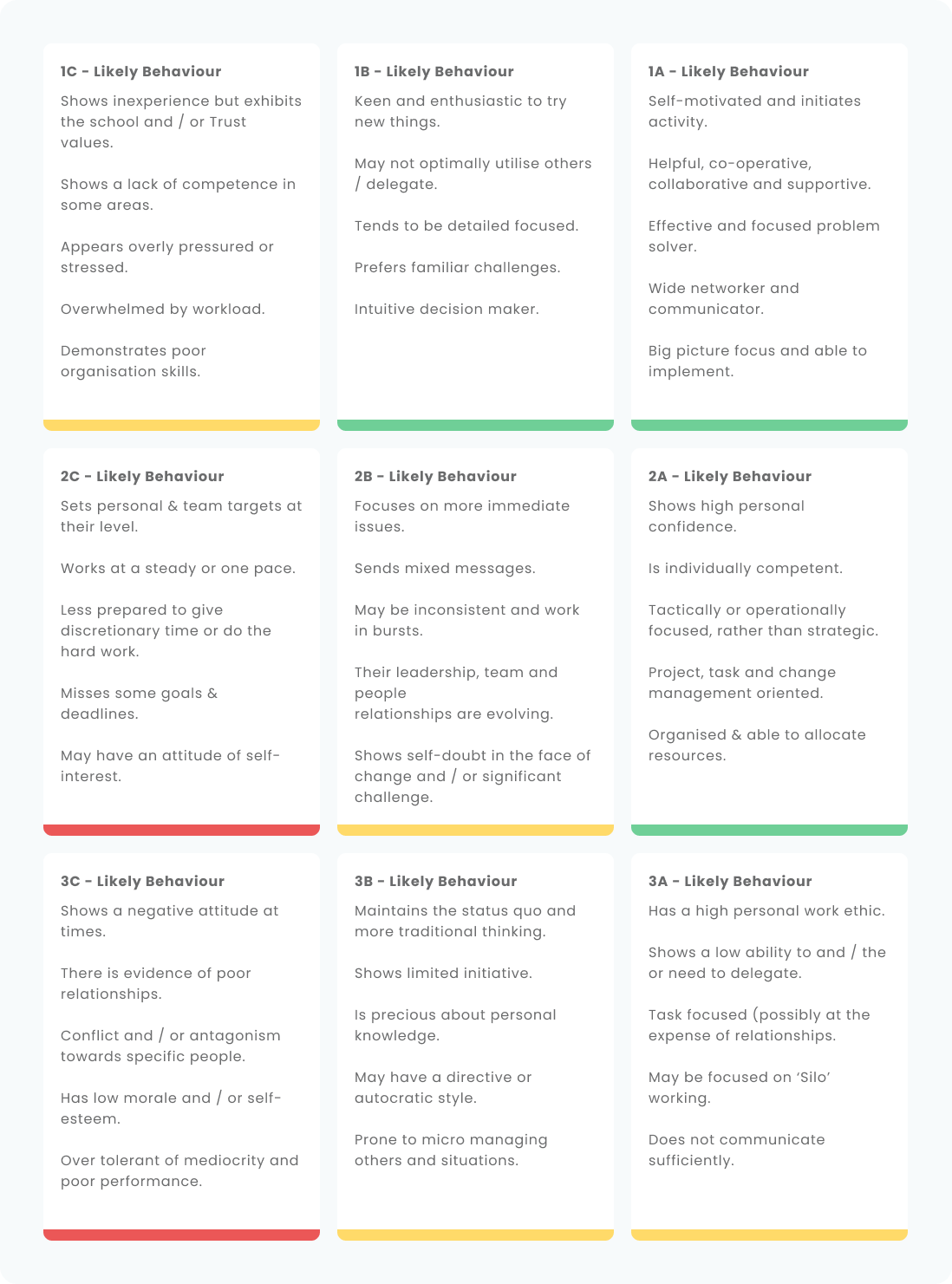
As reviews are completed they are added to your dashboard. Staff are allocated to one of nine categories to make it easier for you to plan for succession, performance management and talent development, and take the right steps for the MAT and / or school and every individual. You can show for each school and for all schools and sites combined.
You can also amend the dashboard titles in each box to fit your people strategy or talent plan. Watch the video below for full details of your dashboard.
Suggestions for actions you can take are in the section called Manage, Develop and Accelerate below.
Watch the video below for a tour of the dashboard.
Confirm your findings
Below are a set of descriptors that describe the likely attributes of a staff member within each category. You can use this to double check where staff members have been placed following their review and to ensure that they are sitting in the right box.
Uncovering Insights
You can click on any staff name in the list to go to their profile. This is where you will find a summary of information for that staff member, including their latest review, ratings, readiness for promotion and risk of leaving. You will also be able to see previous reviews where they have been carried out.
You can also edit the current review. Click on View Assessment Answers and you will see them in a list. Click edit at the top and this will allow you to change any review question or additional question answers. This can be useful if you moderate responses or if there is a disagreement about a particulalr staff member.
The school or MAT dashboard will always represent the latest review for any individual staff member to ensure you always have an up to date position. However, it is important there is an audit trail of reviews for the benefit of you and staff. If changes are made (through a new review), all old ones will remain in your account in the staff member's profile.
Once you are satisfied that reviews of staff are an accurate reflection of their performance and potential, you can move to action.
Use the filters in your staff dashboard to understand the current position of staff. You can filter:
You simply use the available filters and examples of these are shown below.
Monthly Reports
Monthly reports are availkable in your Reports menu. These show the activity in four areas.
These can be viewed only by those with Owner and Super_Admin dashboard access.
Manage, Develop and Accelerate
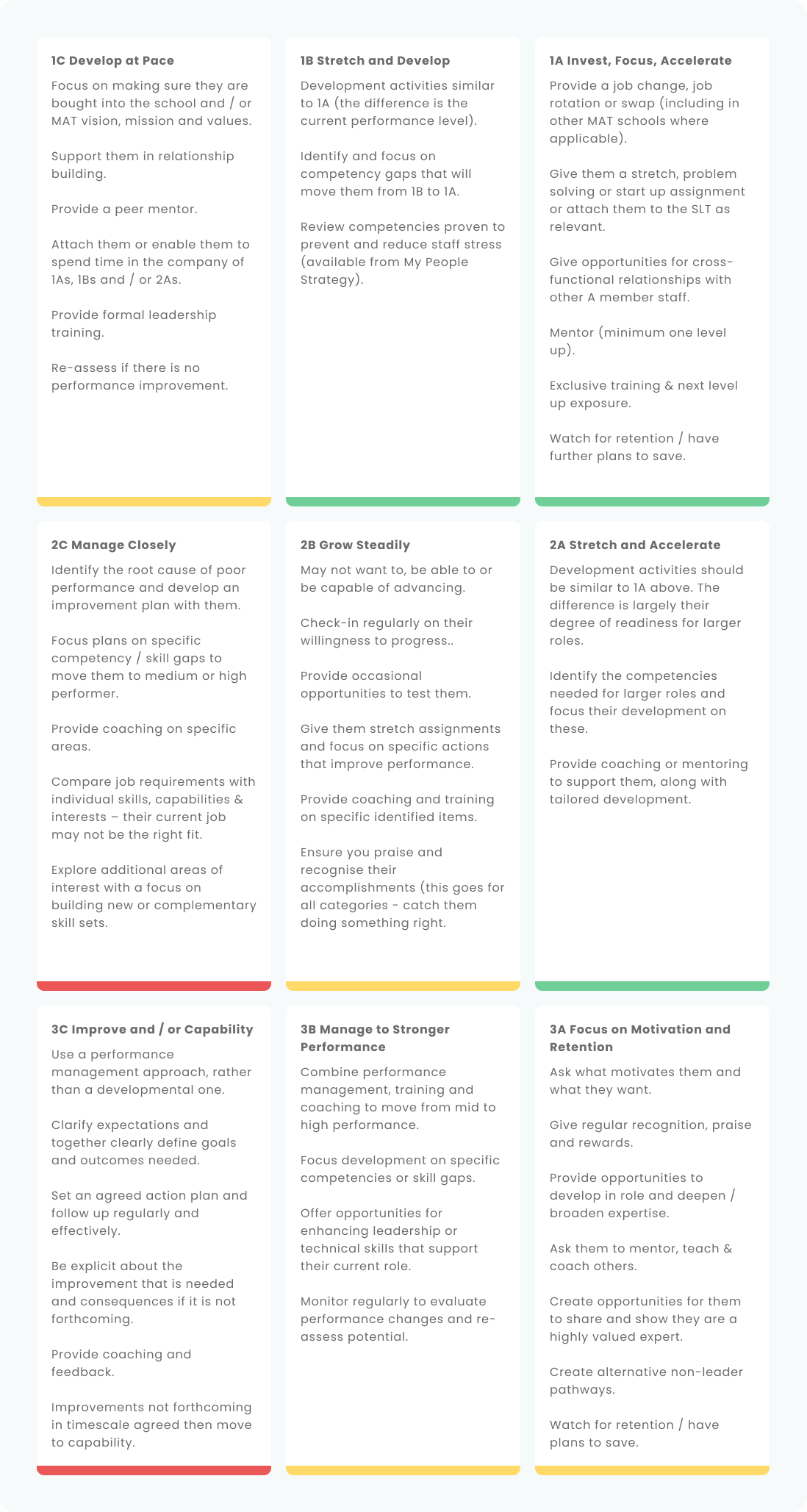
The final step is to take action. To put in place performance management, talent management and staff development that will:
Below you will find a final grid with suggestions for actions you can take for staff in each category within the My People Strategy grid.
That is it for developing your strategy and plans. Build this into regular management meetings and track staff performance in the same way as you do for students.
The final stage is implementation - delivering the performance management, coaching, mentoring and training.
My People Strategy will make sure you identify and take the right opportunities.
You can email support at any time on support@mypeoplestrategy.com.
We will get back to you within one working day.
Thank you for being part of My People Strategy and we look forward to supporting you.
© 2026 My People Strategy is a trading name of People Strategy Ltd. Company Number 13117076, registered in England and Wales.